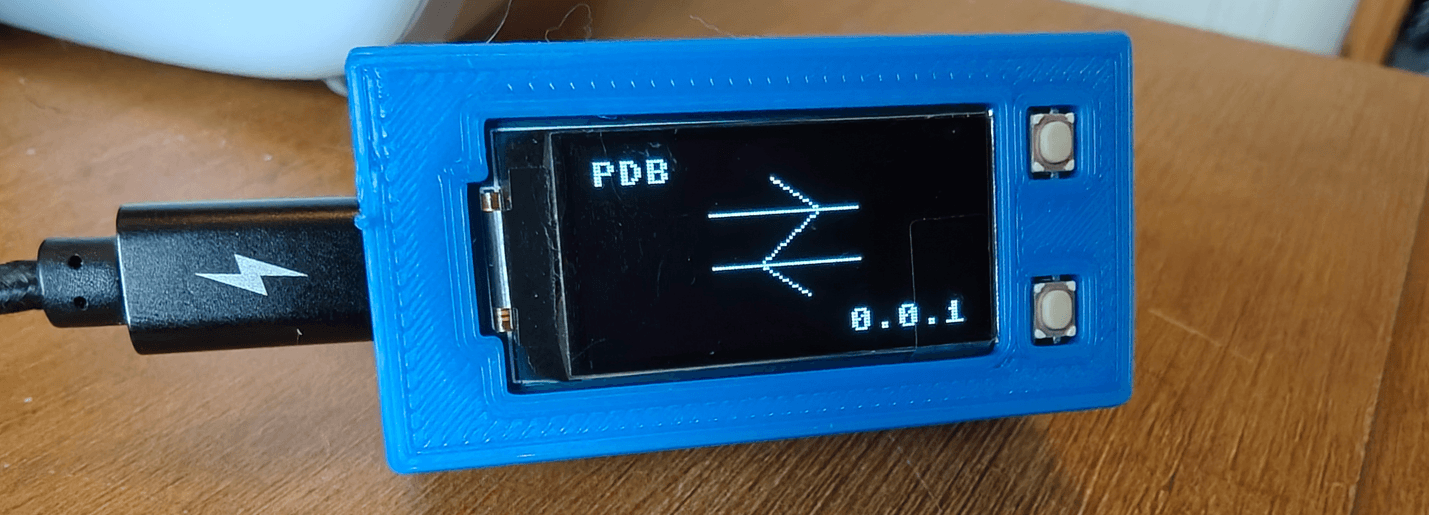
I recently built a tiny train departure board which pulls data from the National Rail API – and needs a WiFi connection to do that. Originally I had the details in a config file that I’d edit and upload to the Pico, but I wanted an easier way – one of my personal goals was for it to be “plug and play” as possible.
There were also a few other things I wanted to be configurable – as well as WiFi SSID and password, it would be convenient to set up API credentials and station information.
This is straightforward enough when the device is already connected to a network, I could just host a simple webserver with a form on it. But it gets more interesting when you’re either setting up for the first time, or your network has changed unexpectedly.
The Pico W can run as it’s own WiFi access point. Instead of connecting to your router, it becomes a router (sort of). Other devices can connect to it directly.
import network

ap = network.WLAN(network.AP_IF)
ap.active(True)
ap.config(essid="MyDevice-Setup", security=0)

# Wait for it to start
while not ap.active():
    time.sleep_ms(250)

print(f"AP running at {ap.ifconfig()[0]}")
Now you’ve got a WiFi network called “MyDevice-Setup” that anyone can join. The Pico gets an IP address (usually 192.168.4.1), and you can run an HTTP server on it.
But many devices will detect that this WiFi network can’t reach the internet and actively work around it (for example, falling back to mobile data or blocking outgoing connections entirely). They’re trying to be helpful, but they’re not in this case.
I wondered if I could host a captive portal – the kind you see when you connect to WiFi in a hotel or at an event…
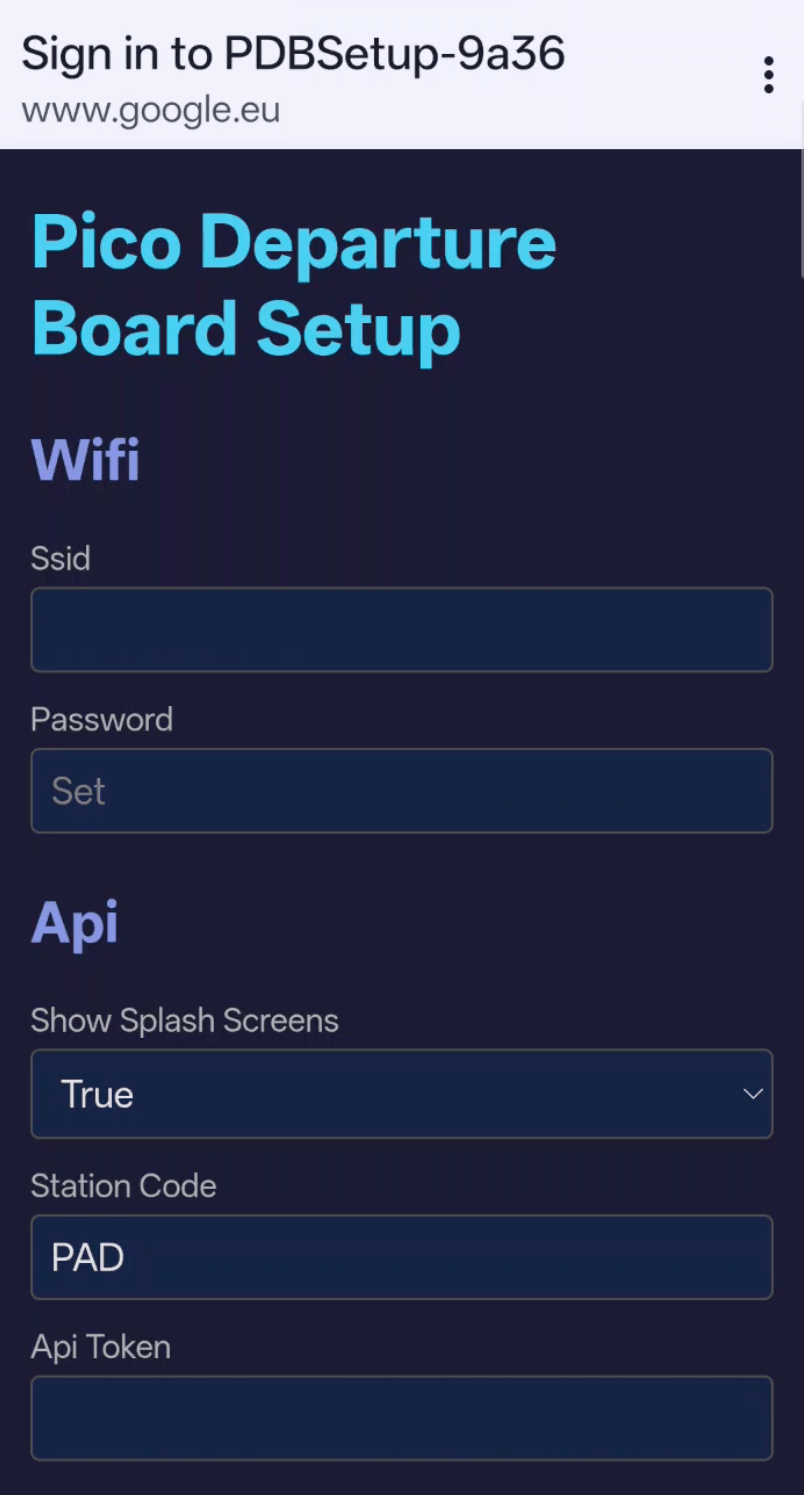
These work by your phone making a test request to a known URL when it connects to a new WiFi network. Apple devices hit http://captive.apple.com/hotspot-detect.html. Android uses http://connectivitycheck.gstatic.com/generate_204. If the response isn’t what they expect, the phone assumes there’s a captive portal and opens a special browser window.
By also having the Pico respond to DNS queries, we can have it respond with it’s own IP address. The phone connects to the Pico, gets an HTML page instead of the expected response, and shows it in a popup.
We don’t need a “real” DNS server, it just needs to respond well enough to “trick” a device in to opening a captive portal, so we can get away with something quite crude. We receive a query, extract enough of the header to build a valid response, and append an answer that points to our IP.
With DNS hijacked, the phone will connect to the Pico for any HTTP request. I serve a very simple form that reads the current config values and lets the user edit them:
When the form is submitted, I parse the POST body, group fields by their prefix (the filename), and write them back to the JSON files – then reboot.
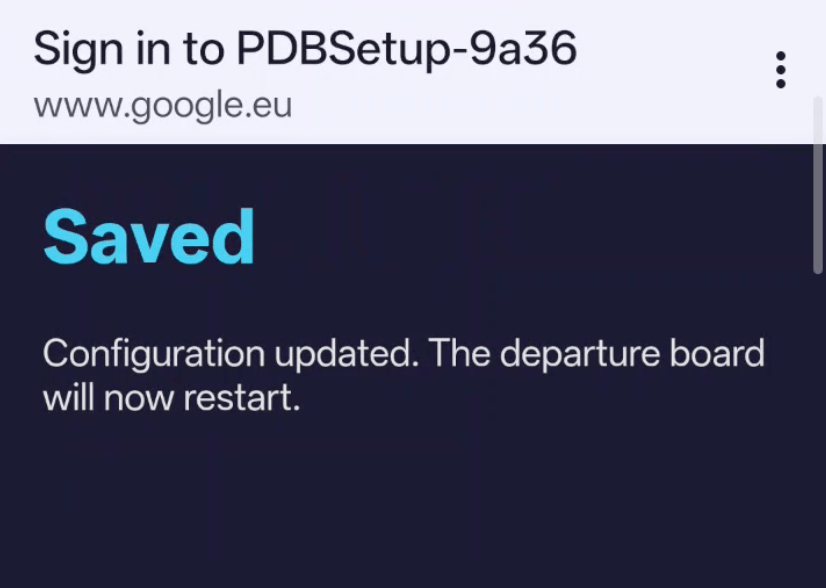
The reboot kills the access point, which makes your phone automatically reconnect to its preferred network. The captive portal popup closes itself with no awkward “you can close this window now” message hanging around. Meanwhile, the Pico is starting up and reading your new config – and with any luck, connecting to your WiFi network itself.
For a first run, with blank config files, I had the Pico start the access point right away and wait for a user to connect, as it can’t do anything useful until then. Once it’s been set up for the first time, you can hold both buttons down to get back in to setup mode.
A few small things that made the form less annoying:
Passwords aren’t shown – the form displays “Set” or “Not set” as a placeholder, not the actual value. If you submit the form with an empty password field, the existing password is preserved rather than being blanked.
Booleans get nice dropdowns – the code detects boolean values in the config and renders them as True/False select boxes instead of text inputs. On save, it converts the strings back to actual booleans.
Existing config is preserved – when saving, the form merges with the existing config rather than replacing it entirely. Any keys not in the form (future settings, internal state) survive the update.
The full flow:
- User holds both buttons on the device
- Device reboots into setup mode
- Device starts an access point: “MyDevice-XXXX” (unique suffix from the Pico’s ID)
- Device starts DNS server on port 53, HTTP server on port 80
- User connects to the WiFi network on their phone
- Phone detects captive portal, pops up browser
- User sees config form, fills it in, submits
- Device saves config, reboots into normal mode
- Device connects to the configured WiFi and starts working
I wrapped all of this into a CaptivePortal class that could be easily dropped into any project.
You provide the HTTP handler and the class handles the access point, DNS hijacking, and HTTP serving.
Some important caveats for this very not production ready project:
Security – the access point is open (no password). Anyone nearby can connect and change your config.
Not all devices behave the same – For me, iOS, Android and Mac reliably showed the captive portal popup. Other devices may be more stubborn, but worst case, the user should be able to manually open a browser and go to any URL (e.g https://pico.setup) and the DNS hijacking will still redirect them.
Turn off your VPN – If your phone has a VPN running, it may route DNS queries through the VPN’s servers instead of the local network, and you spend far too long wondering why it works on one device but not another. Ask me how I know.
Phones are needy – when connected to a captive portal network, your phone doesn’t politely wait for you to fill in a form. It’s constantly making connectivity checks, retrying failed requests, probing for internet access, and generally hammering your tiny server with traffic.
Most importantly the DNS server is a hack. It works, but it’s not robust. Don’t use this for anything important.
Full source is on GitHub: https://github.com/oliciv/pico-departure-board